Bootstrapping using the BIOS
Motherboards contain some non-volatile memory to initialize the system and load an operating system from some external peripheral device. Microcomputers such as the Apple II and IBM PC used ROM
chips, mounted in sockets on the motherboard. At power-up, the central
processor would load its program counter with the address of the boot
ROM and start executing ROM instructions, displaying system information
on the screen and running memory checks, which would in turn start
loading memory from an external or peripheral device (disk drive). If
none is available, then the computer can perform tasks from other memory
stores or display an error message, depending on the model and design
of the computer and version of the BIOS.
Most modern motherboard designs use a BIOS, stored in an EEPROM chip soldered or socketed to the motherboard, to bootstrap an operating system.
When power is first applied to the motherboard, the BIOS firmware tests
and configures memory, circuitry, and peripherals. This Power-On Self Test (POST) may include testing some of the following things:
On recent motherboards, the BIOS may also patch the central processor
microcode if the BIOS detects that the installed CPU is one in for
which errata has been published. Many of the above devices can be stored with machine code instructions to load an operating system or program.
|
|
Prior to the advent of the microprocessor, a computer was usually built in a card-cage case or mainframe with components connected by a backplane
consisting of a set of slots themselves connected with wires; in very
old designs the wires were discrete connections between card connector
pins, but printed circuit boards soon became the standard practice. The Central Processing Unit, memory and peripherals
were housed on individual printed circuit boards which plugged into the
backplate. During the late 1980s and 1990s, it became economical to
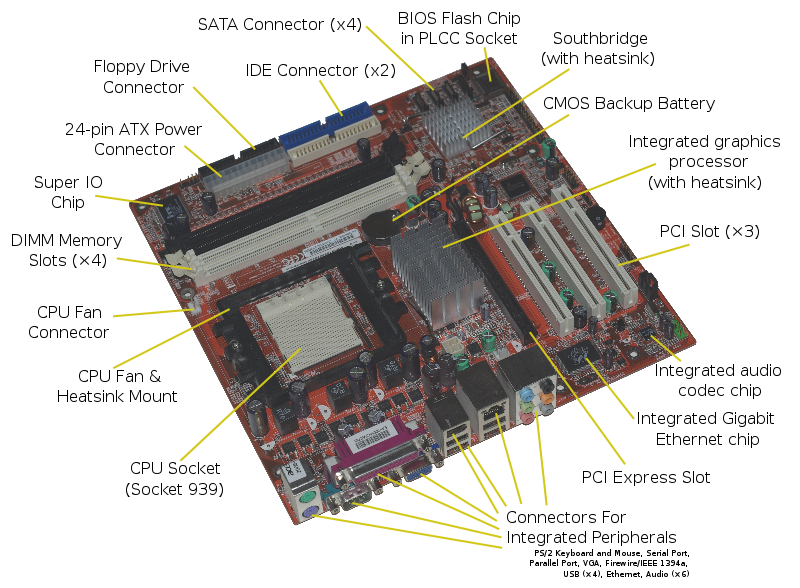
move an increasing number of peripheral functions onto the motherboard (see below). In the late 1980s, motherboards began to include single ICs (called Super I/O chips) capable of supporting a set of low-speed peripherals: keyboard, mouse, floppy disk drive, serial ports,
and parallel ports. As of the late 1990s, many personal computer
motherboards supported a full range of audio, video, storage, and
networking functions without the need for any expansion cards at all; higher-end systems for 3D gaming and computer graphics typically retained only the graphics card as a separate component.
The early pioneers of motherboard manufacturing were Micronics, Mylex, AMI, DTK, Hauppauge, Orchid Technology, Elitegroup, DFI, and a number of Taiwan-based manufacturers.
The most popular computers such as the Apple II and IBM PC had published schematic diagrams and other documentation which permitted rapid reverse-engineering
and third-party replacement motherboards. Usually intended for building
new computers compatible with the exemplars, many motherboards offered
additional performance or other features and were used to upgrade the
manufacturer's original equipment
The term mainboard is applied to devices with a single board and no
additional expansions or capability. In modern terms this would include embedded systems
and controlling boards in televisions, washing machines, etc. A
motherboard specifically refers to a printed circuit board with
expansion capability.
How do I find the computer motherboard chipset? Manual The
manual is always going to be the quickest and easiest way to determine
what chipset your motherboard uses. If you have any documentation that
came with your motherboard it is recommended you first refer to that
documentation. Windows Identification If you are looking for the chipset of the motherboard and are running Microsoft Windows 95, Windows 98, Windows ME, Windows 2000, or Windows XP you can find the chipset information under the 'System devices' category in Device Manager. The chipset of the motherboard will likely be ALI, AMD, Intel, NVidia, VIA, or SIS. However, this information will only be seen if the chipset drivers are installed in the computer properly. Note:
If you are attempting to identify your chipset because you need to
install drivers for the chipset often a motherboard
or computer will come with a CD that has the proper chipset drivers on
it. If you do not have a CD that will install these drivers you will
need to continue to the next step to identify the chipset and download
the chipset drivers from our motherboard page. Motherboard identification If you do not have any product documentation the next best method of determining the chipset the motherboard has is to
identify the motherboard installed in the computer.
Once the motherboard and model of motherboard has been identified you
can visit the motherboard manufacturers page for online documentation or
a software utility to determine the chipset. A listing of motherboard
manufacturers can be found on our motherboard links section.
|

